List Account Balances
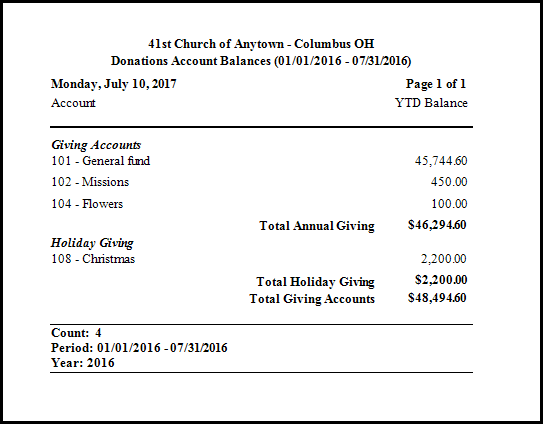
Use the List Account Balances feature in Donations to generate a report that lists the balances for all the accounts.
To run the report:
- From The Initial Portal of Church Windows choose Donations
- Click Reports/Export in the Button Bar at the top of the screen.
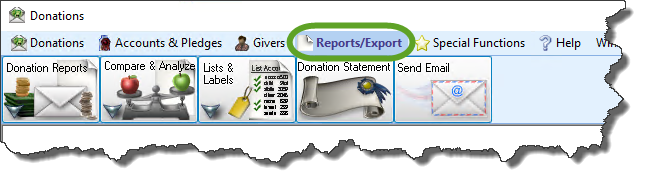
- Click the Lists & Labels button that appears below.
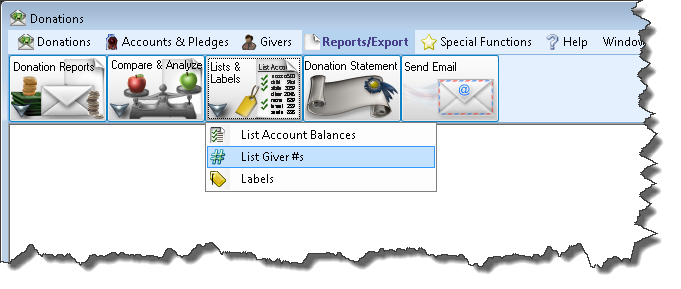
- Click the List Account Balances button that appears in the adjacent menu.
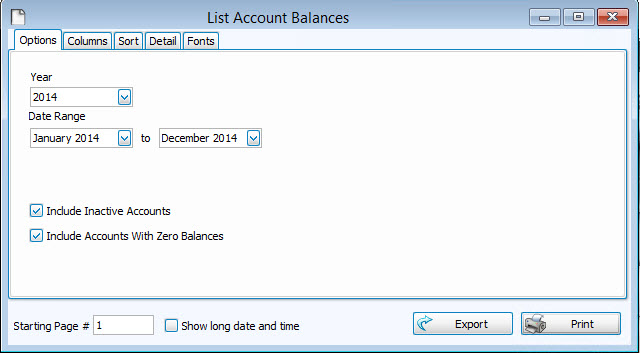
- Choose the desired Year and Date Range from the boxes located on the screen.
- Click to check the Include Inactive Accounts box if you would like the report to also show accounts that have been marked as Inactive on the Manage Accounts screen.
- Click to check the Include Accounts with Zero Balances box if you want the report to also show accounts that have a balance of $0.00.
Choose any of the following tabs to apply additional settings:
Determines the order and the appearance of the columns displayed.
Organizes the information into the desired order (and groupings).
Detail tab
Includes certain accounts / Subtotals in the report. Click to remove a checkmark that has been placed next to an account / subtotal that you do not want. Otherwise, all accounts / subtotals will show on the report.
Sets the style and size of the typeface used to display the contents of the report.
Once you have made all of your selections, click Print to view a Print Preview and then proceed in sending the file to your printer. You can also Export most reports and/or Send via Email as a file to be used outside of Church Windows.
 Click to see an example Account Balance List